
View and analyze the automated reconciliation data directly from Myntra. No manual calculations required.
What is this Template?
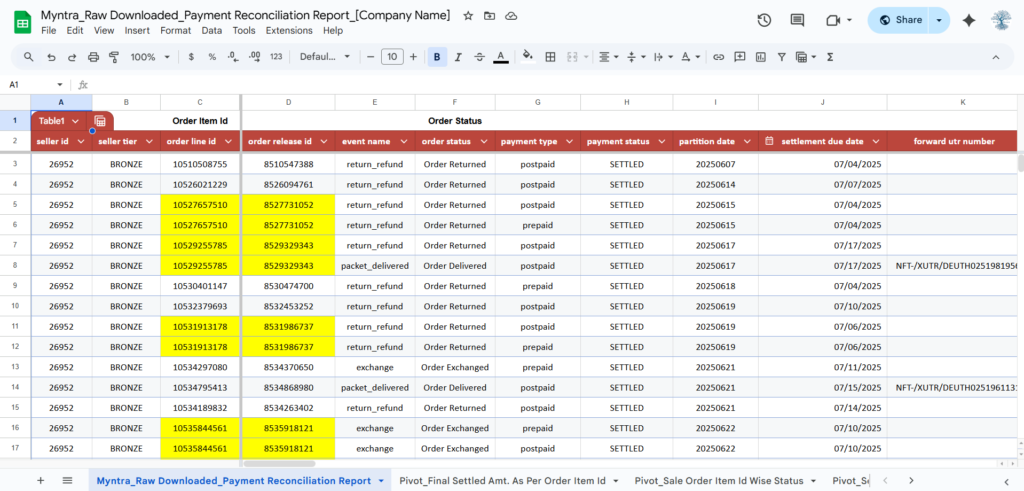
This template allows you to import and view the Raw Reconciliation Report generated by Myntra’s seller dashboard.
Myntra performs its own internal reconciliation to match Orders against Payments. This sheet is designed to help you read, search, and archive that specific report so you can see exactly which Order Line IDs Myntra considers “Settled” and which are “Pending” or “Disputed.”
⚠️ Note: This template does not perform new calculations. It reflects the exact reconciliation status provided by Myntra.
Where to Download This Data?
- Login to your Myntra Seller Portal.
- Navigate to Payments > Reconciliation.
- Look for the “Download Report” or “Reconciliation Report” button.
- Select your date range and download the CSV file.
How to Use This Template
Step 1: Import Your Report
- Open the CSV file you downloaded from Myntra.
- Select all data (Ctrl + A) and Copy it.
- Open this Template.
- Paste the data into the “Raw Data” tab (starting at cell A2).
Step 2: Understanding the Data
Since this report comes from Myntra’s internal system, here is how to interpret the key columns:
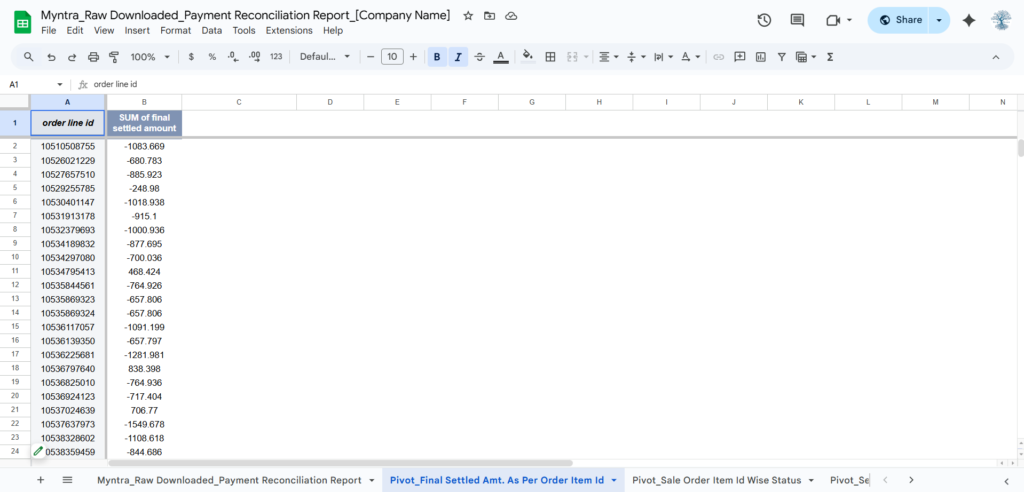
- Order Line ID: This is the unique identifier for every single item. Myntra reconciles at the Item Level, not just the Order Level.
- Reconciliation Status: This is the most important column. It tells you Myntra’s verdict on the item:
- Settled: Myntra confirms payment has been processed.
- Unsettled / Pending: The payment cycle is not yet complete.
- Disputed: There is a mismatch (e.g., lost inventory or wrong deduction) that Myntra is investigating.
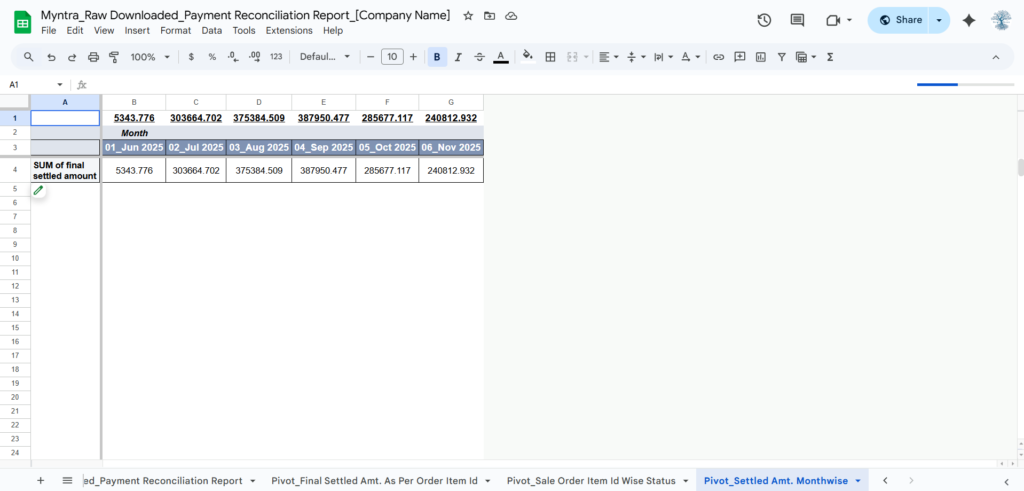
- Myntra Settlement Amount: The value Myntra claims to have settled for this item.
Why Use This Viewer?
- Searchability: Quickly find any Order Line ID to see if Myntra has marked it as “Settled.”
- Historical Archive: Keep a permanent record of Myntra’s reconciliation verdicts for future audits.
- Dispute Evidence: If Myntra marks an item as “Settled” but you didn’t receive the money, this report serves as their own “Proof of Status” when you raise a ticket.
Important Disclaimer
This sheet is a Viewer Tool. All status updates, settlement amounts, and reconciliation logic are generated by Myntra. If you disagree with a status (e.g., it says “Settled” but you were underpaid), you must raise a claim ticket on the Myntra Seller Support portal using this data as reference.
Setting Up Your “Myntra_Raw Downloaded_Payment Reconciliation Report”
“Myntra_Raw Downloaded_Payment Reconciliation Report” tab. Before pasting your download, it is critical to format the Order Line ID column as Plain Text to prevent Google Sheets from corrupting the long identification numbers into scientific notation. Once formatted, simply copy the entire contents of your Myntra CSV and paste it directly into cell A3, keeping the original header row intact. This seamless transfer allows the template to instantly map Myntra’s reconciliation verdicts to your searchable archive without any manual data entry or column shifting.
🛠️ Need Expert Help with this File?
“While this sheet is designed to be Plug & Play, we know that marketplace reports can sometimes be messy or complex. If you are stuck with a formula error, have unique SKU data, or want a professional audit of your template or reconciliation, don’t waste hours trying to fix it yourself.”
Book a 1-on-1 Remote Support Session:
- What you get: 30 minutes of private screen-sharing (Zoom/Google Meet).
- Direct Help: I will troubleshoot your specific data and fix your sheet ‘live’.
- Efficiency: Get your templates marketplaces reconciliation finished today.
💡 Pro Tip: To lock in your preferred time, please complete the payment immediately after scheduling. Once paid, you will receive a confirmation email with the Google Meet link and a Pre-Appointment Checklist to help us fix your data faster!
Please read the Pre-Appointment Checklist before booking to ensure we make the most of our time.
⚠️ Important Note: Maintaining Template Integrity
Always use “Paste as Values” When moving data from your marketplace reports or other Excel files into this template, never use a standard paste (Ctrl+V). Doing so will overwrite the pre-configured formatting and logic of the cells.
To keep the template working correctly:
- Windows Shortcut: Press Ctrl + Shift + V
- Mac Shortcut: Press Cmd + Shift + V
By using this shortcut, you ensure that only the raw data (Text/Numbers) is pasted, leaving the template’s background colors, borders, and Apps Script connections untouched.
📜 License & Support Policy
Single-User License: This file is for your internal business use only. Redistribution or sharing this link with other sellers is strictly prohibited and monitored. Each purchase is linked to your registered email at Simply Recon.
Our Support Policy:
- Self-Service: Documentation is available here 24/7 for free.
- Product Bugs: If the original file has a technical error, we fix it for free.
- Personalized Assistance: If you have modified the sheet, have complex data issues, or need one-on-one training, please book a Paid Remote Appointment above.


